

In the modern remote work landscape, identity is the new perimeter. Integrating Microsoft Entra ID (formerly Azure Active Directory) with Thinfinity Workspace represents a strategic convergence of cloud-native identity management and high-performance Virtual Desktop Infrastructure (VDI).
This integration moves organizations beyond vulnerable, static passwords. By leveraging OAuth 2.0 and OpenID Connect (OIDC), you can enable seamless Single Sign-On (SSO) for your VDI environment while enforcing enterprise-grade security policies like Multi-Factor Authentication (MFA), Conditional Access, and Zero Trust verification.
In this guide, we explore how combining Entra ID’s robust authentication engine with Thinfinity’s flexible user mapping creates a secure, compliant, and frictionless remote access solution.
Why Modernize VDI Authentication?
Traditional VDI often relies on users typing their domain credentials directly into a web portal or client login box. This approach carries significant risks:
- Credential Exposure: Passwords can be intercepted by keyloggers or stolen via phishing sites mimicking the VDI portal.
- Static Trust: Once a user logs in, they are trusted for the duration of the session, regardless of changes in risk signals.
- Lack of Context: Basic LDAP authentication doesn’t account for device health, geolocation, or impossible travel scenarios.
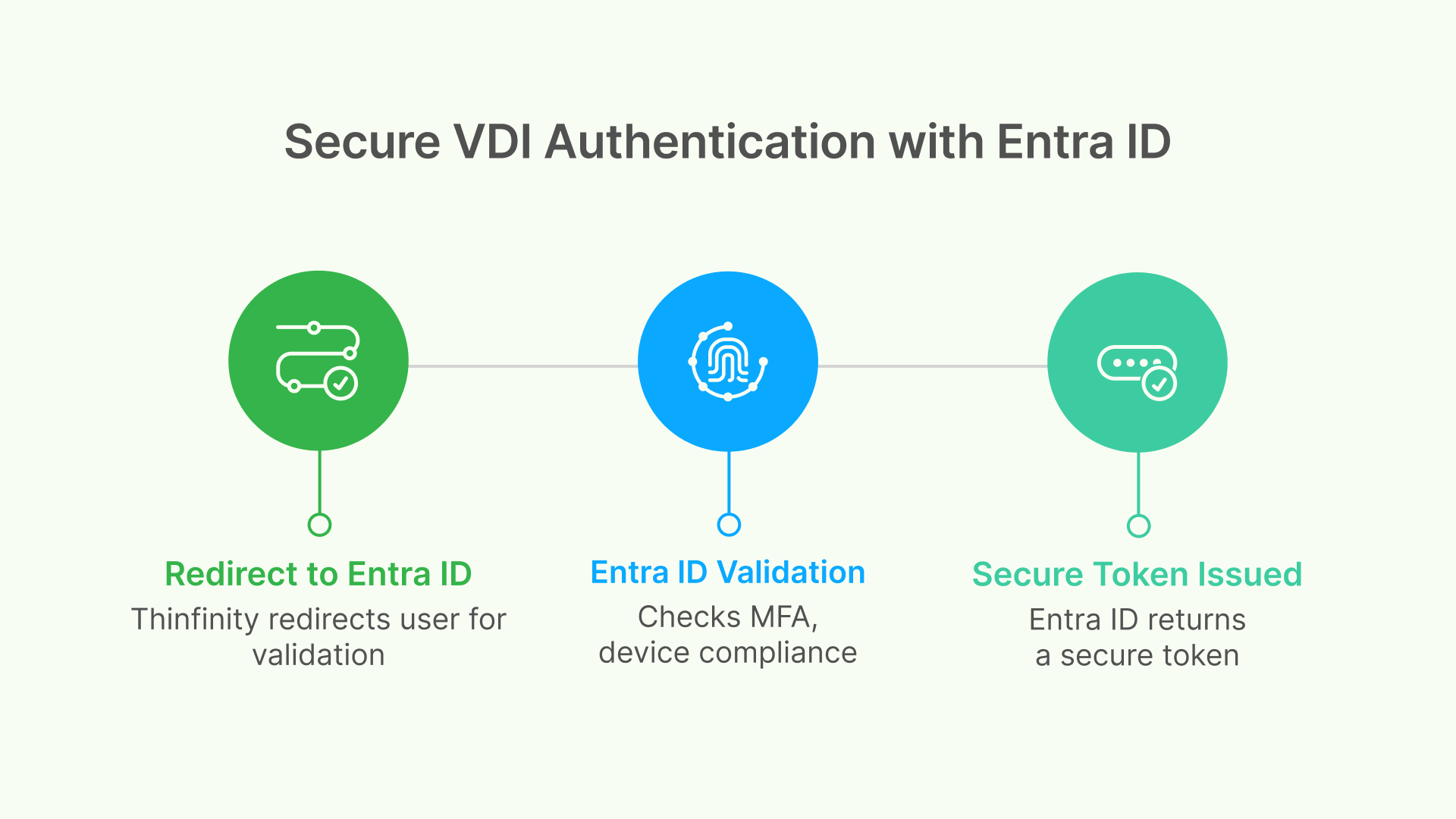
The Solution: Offloading authentication to Microsoft Entra ID. Instead of Thinfinity handling the password, it redirects the user to Microsoft. Entra ID validates the user (checking MFA, device compliance, and risk score) and returns a secure token. Thinfinity trusts the token, not the password.
How It Works: The OAuth 2.0 Authorization Code Flow
Understanding the flow is key to appreciating the security benefits. Thinfinity utilizes the standard OAuth 2.0 Authorization Code Flow, ensuring user credentials never pass through the Thinfinity server.
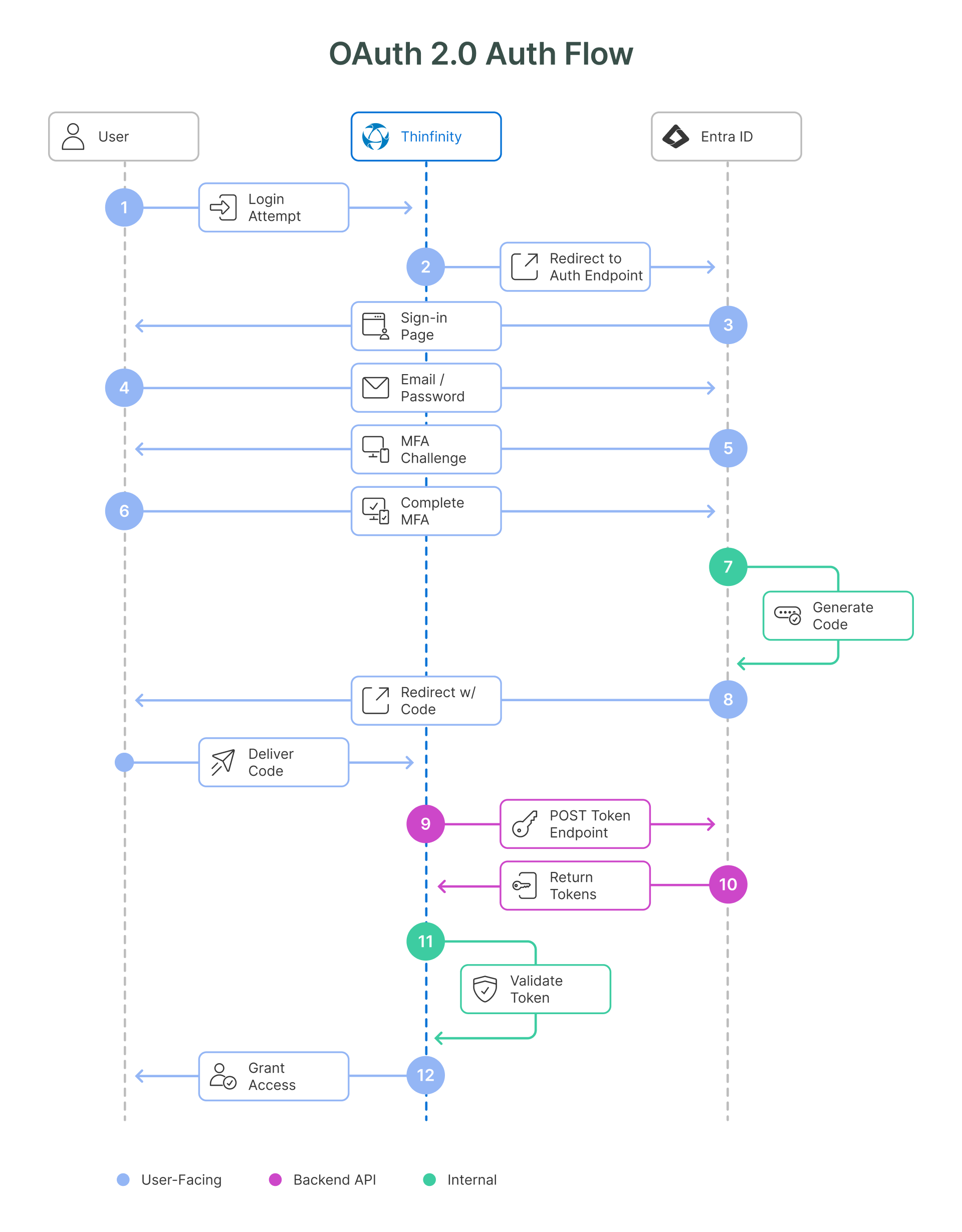
- User Request: The user navigates to their Thinfinity Workspace URL.
- Redirect: Thinfinity sees the user is unauthenticated and redirects their browser to the Entra ID Authorization Endpoint.
- Authentication: The user logs in at login.microsoftonline.com. This is where Conditional Access policies are applied (e.g., “Must be on a compliant laptop” or “Must perform MFA”).
- Code Issue: If successful, Entra ID sends a short-lived Authorization Code back to the user’s browser, which passes it to Thinfinity.
- Token Exchange: Thinfinity’s backend server takes this code and its own Client Secret and exchanges them directly with Entra ID for an Access Token (JWT). This back-channel communication prevents token interception.
- Access Granted: Thinfinity validates the token’s digital signature and grants the user access to their desktop.
Bridging Cloud Identity with On-Premises Resources
A common challenge in VDI is the “Identity Gap.” Your Identity Provider (Entra ID) is in the cloud, but your resources (Windows VMs, File Shares) are on-premises and expect Active Directory (AD) Kerberos tickets.
Thinfinity solves this via intelligent Identity Mapping.
The Mapping Logic
When Thinfinity receives the verified token from Entra ID, it extracts the user’s unique identifier (usually the email or UPN).
- Entra ID User: john.doe@corporate.com
- Thinfinity Logic: Looks up the mapping rule.
- Local AD User: CORP\john.d
Thinfinity then impersonates the mapped local AD user to launch the session. This means the user logs in with their cloud identity (and MFA), but the Windows OS sees a standard domain user. This ensures that NTFS file permissions, Group Policies, and application access rights function exactly as expected.
Strategic Benefits for the Enterprise
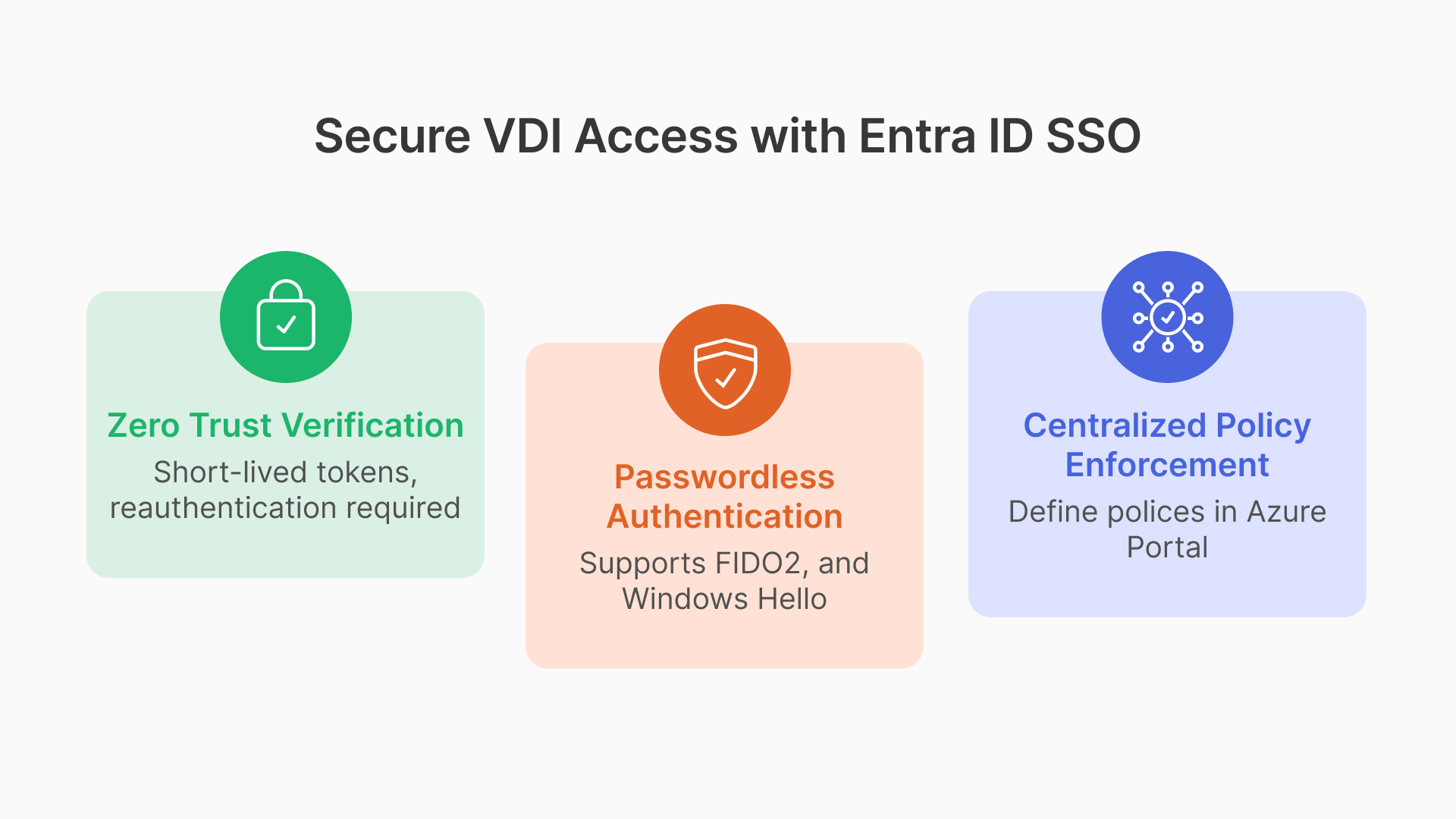
Implementing Entra ID SSO for Thinfinity isn’t just a technical upgrade; it’s a security transformation.
1. Zero Trust Alignment
Zero Trust dictates “Never Trust, Always Verify.” With this integration, you aren’t just verifying the user once. Entra ID’s tokens are short-lived. When they expire, the user must re-authenticate (often silently). If a user’s risk profile changes—for example, if their laptop is detected with malware—Entra ID can block the next token refresh, instantly revoking VDI access.
2. Passwordless Readiness
Thinfinity is agnostic to how the user authenticates, only that they authenticated. This means you can adopt Passwordless methods in Entra ID—like FIDO2 keys, Windows Hello for Business, or the Microsoft Authenticator app—and Thinfinity instantly supports them without any configuration changes.
3. Centralized Policy Enforcement
Admins no longer need to configure MFA settings inside the VDI platform. You define your policies once in the Azure Portal (e.g., “Require MFA for all external access”), and they automatically apply to Thinfinity and every other enterprise app.
Implementation: How to Configure
Deploying this integration is straightforward but requires precise configuration of the “handshake” between your Thinfinity server and your Azure tenant.
Key Configuration Steps:
- App Registration: Create a new App Registration in the Entra ID portal to represent Thinfinity.
- Redirect URIs: define the callback URL (e.g., https://vdi.company.com/azure) to ensure Entra ID sends tokens to the right place.
- Client Secret: Generate a secret key that Thinfinity will use to prove its identity to Microsoft.
- API Permissions: Grant the app permission to read the user’s basic profile (User.Read) to extract the email address for mapping.
- Thinfinity Setup: Input the Tenant ID, Client ID, and Secret into the Thinfinity Server Manager.
Ready to set this up? For a step-by-step technical walkthrough with screenshots and specific parameter settings, please refer to our official Knowledge Base article: 👉 How to Configure Single Sign-On in Thinfinity Workspace Using Azure AD / Entra ID with OAuth.
Conclusion
The integration of Microsoft Entra ID and Thinfinity Workspace delivers the best of both worlds: the robust, adaptive security of the world’s leading identity platform and the high-performance, browser-based accessibility of modern VDI.
By decoupling authentication from infrastructure, organizations can enforce strict security standards—including MFA and Conditional Access—without compromising the user experience. Whether your workforce is connecting from a corporate branch or a coffee shop, this architecture ensures that every access request is verified, secure, and compliant.