


CAD workloads are why most manufacturing IT teams hesitate before moving to cloud VDI. But with the right GPU architecture, OCI instance selection, and session encoding, cloud VDI can outperform a physical workstation. This article covers what manufacturing IT teams need to make GPU-accelerated cloud VDI work for CAD and engineering users — and how Thinfinity on OCI implements it for production manufacturing environments.

 The most common mistake in CAD VDI is sizing GPU shapes for the average workload instead of the peak. Define your engineering workstation VDI GPU personas first:
“Digital transformation in manufacturing demands a more strategic, value-driven approach to cloud services. Without a new approach, manufacturing businesses will struggle to tackle complex technology-powered initiatives in the future.”
Why Do CAD Workloads Need a Different VDI Approach?
Modern CAD applications (SolidWorks, CATIA, Siemens NX, Creo) use OpenGL or DirectX to render 3D geometry on the GPU. Navigating a large assembly requires 30–60 FPS with minimal latency; running a CFD simulation requires sustained GPU compute over hours. The three critical constraints are:- GPU VRAM — large assemblies need 4–16 GB. Exceeding available VRAM forces fallback to system RAM, producing the stuttering that makes engineers reject VDI. This is the #1 cause of poor CAD VDI performance.
- Input-to-display latency — CAD users notice latency above 30ms when rotating assemblies. Session encoding compression directly impacts this.
- ISV certification — Dassault, Siemens, Autodesk, and PTC maintain certified VDI configuration lists. Uncertified setups risk ISV support refusal on rendering bugs. NVIDIA’s vGPU certification program is the industry reference; OCI A10/A100 GPU instances are certified. Verify versions against Dassault’s certification portal.
“Since work that was typically done by the CPU is offloaded to the GPU, the user has a much better experience. This enables support for demanding engineering and creative applications in a virtualized and cloud environment.”
Which GPU Virtualization Architecture Should You Choose for CAD VDI?
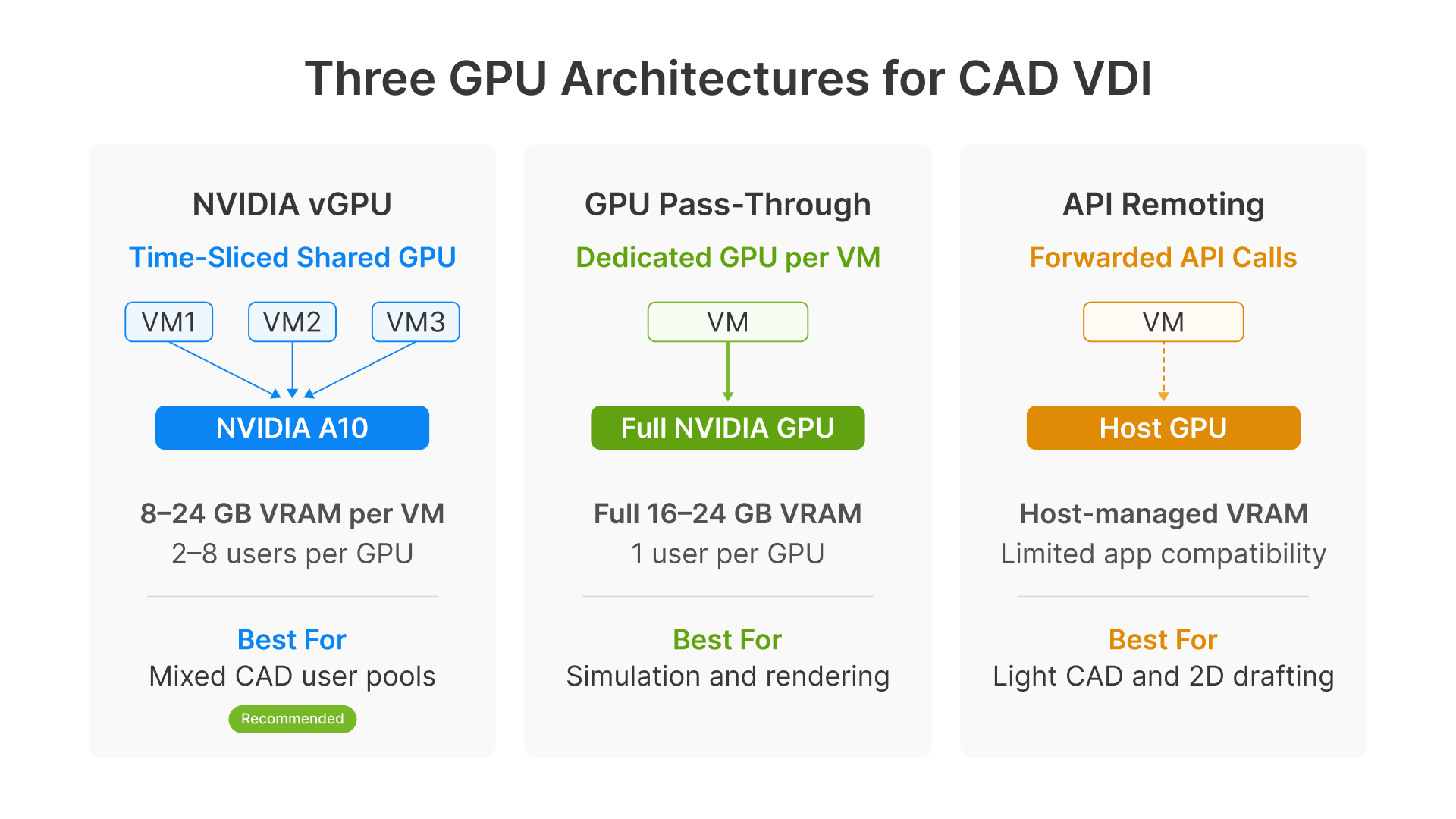
There are three fundamentally different ways to deliver GPU acceleration to a cloud VDI session for CAD engineering workloads. Each has a different performance profile, cost model, and operational complexity.
NVIDIA vGPU (Shared GPU)
NVIDIA vGPU (Virtual GPU) is a time-slicing technology that shares one physical GPU across multiple VMs. VRAM is partitioned per VM in configurable profile sizes. This requires NVIDIA vGPU software licensing (per GPU, subscription basis). It delivers full OpenGL and DirectX support with certified drivers. Best for mixed CAD user populations where not every user needs maximum GPU at the same time. On OCI, the BM.GPU.A10.4 shape supports vGPU profiles up to 24 GB per VM, serving 2 to 8 CAD users per GPU depending on profile size.GPU Pass-Through (Dedicated)
A full physical GPU is dedicated to a single VM exclusively — no sharing, no overhead. Maximum performance for single-user engineering workstations, but at a 1:1 GPU-to-VM ratio, it’s expensive at scale. No vGPU license required. Best for simulation analysts, rendering workloads, and the highest-demand CAD users. On OCI, use VM.GPU3.1 (1x V100) or VM.GPU.A10.1 (1x A10).API Remoting
OpenGL/DirectX API calls are forwarded from the guest VM to the host GPU. No VRAM partitioning — the host handles rendering. Lower per-user cost than vGPU, but compatibility is limited and not recommended for complex 3D assembly work with large VRAM requirements in manufacturing CAD. Best for lighter CAD workloads, 2D drafting, and visualization-only use cases.| Recommendation for manufacturing: Start with NVIDIA vGPU on OCI A10 shapes for most CAD users. Add dedicated pass-through shapes (VM.GPU3.1 or VM.GPU.A10.1) for simulation analysts who saturate a full GPU. A hybrid pool — vGPU for standard users, pass-through for power users — is the most cost-effective production configuration for manufacturing engineering VDI. |
|---|
Which OCI GPU Shape Should You Choose for CAD Engineering?
Oracle Cloud Infrastructure offers several GPU-equipped instance shapes for cloud workstation manufacturing engineering. Selecting the right one means matching VRAM, compute capability, and cost to each engineering user persona. As Oracle states, OCI Compute powered by NVIDIA GPUs provides consistent high performance for VDI — and this applies directly to CAD VDI GPU workloads in manufacturing.| OCI Shape | GPU | VRAM | Manufacturing CAD Use Cases |
|---|---|---|---|
| VM.GPU.A10.1 | 1x A10 | 24 GB | Standard CAD users: SolidWorks mid-size assemblies, AutoCAD 3D, Inventor. Recommended baseline for most engineers. |
| VM.GPU.A10.2 | 2x A10 | 48 GB | Power CAD: CATIA V5/V6 large assemblies, Siemens NX complex surfaces, concurrent CAD + simulation sessions. |
| BM.GPU.A10.4 | 4x A10 | 96 GB | vGPU host for user pools: partition into 4–8 profiles for concurrent multi-user sessions. Most cost-efficient for shared pools. |
| VM.GPU3.1 | 1x V100 | 16 GB | FEA/CFD simulation: Ansys Mechanical, COMSOL. Higher FP64 compute for simulation-heavy workflows. |
| BM.GPU4.8 | 8x A100 | 320 GB | Large simulations, ML/AI, rendering farms. Not typical for interactive CAD — use for batch processing. |
How Should You Size GPU Shapes by User Persona?
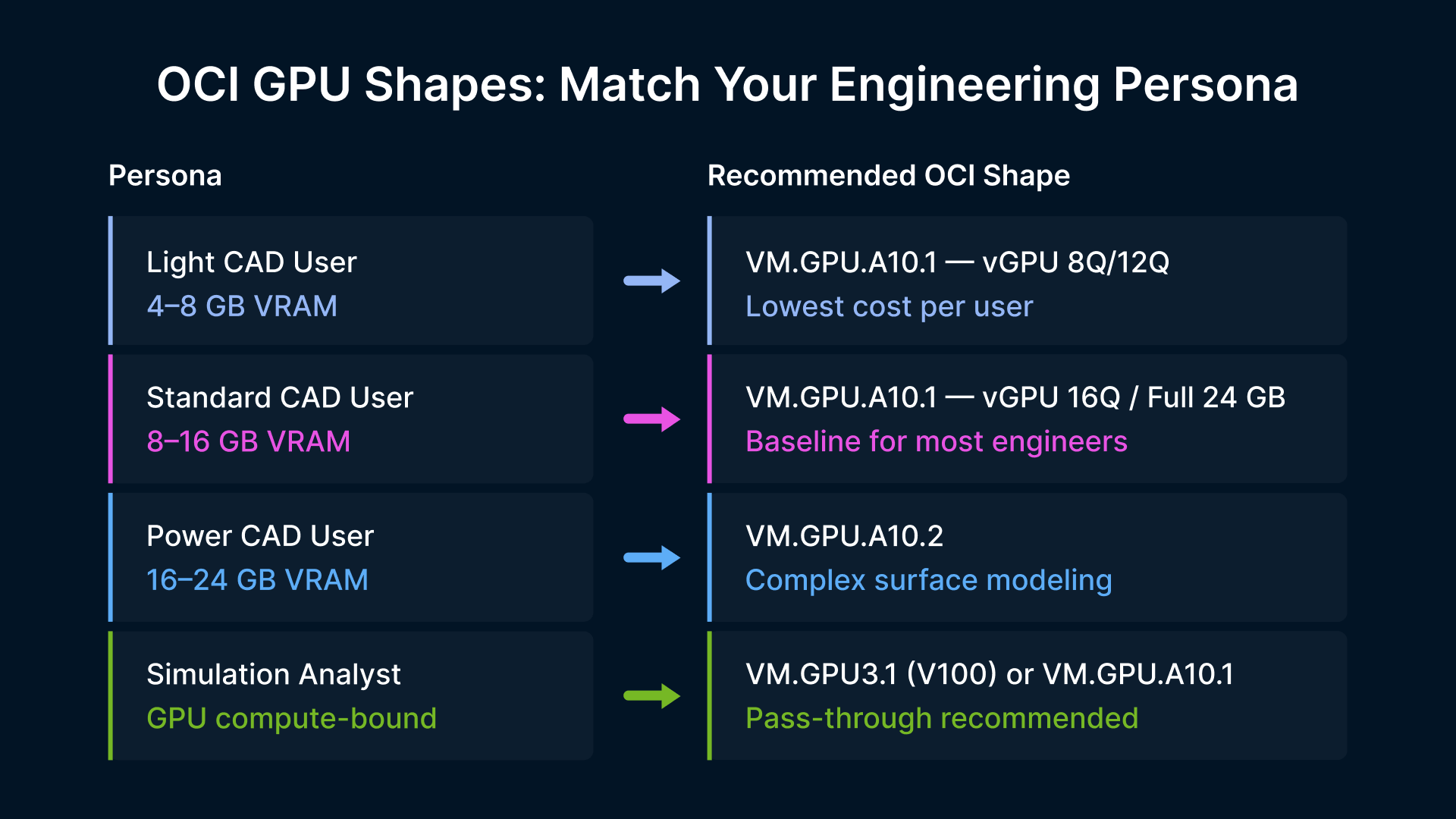
The most common mistake in CAD VDI is sizing GPU shapes for the average workload instead of the peak. Define your engineering workstation VDI GPU personas first:
- Light CAD users (2D drafting, small assemblies under 200 components): 4–8 GB VRAM. Use VM.GPU.A10.1 with NVIDIA vGPU 8Q or 12Q profile, shared across 2–3 users.
- Standard CAD users (full 3D assembly, up to 500 components, rendering): 8–16 GB VRAM. Use VM.GPU.A10.1 with dedicated 24 GB or vGPU 16Q profile.
- Power CAD users (1,000+ components, CATIA DMU, complex surfaces): 16–24 GB VRAM. Use VM.GPU.A10.2.
- Simulation analysts (Ansys, Abaqus, COMSOL — GPU compute-bound): Use VM.GPU3.1 for FP64 workloads or VM.GPU.A10.1 for FP32 with large visualization.
How Should You Benchmark CAD VDI Before Production Rollout?
Deploying GPU VDI for CAD without structured performance validation is the fastest way to create engineering team resistance that’s very hard to reverse. Engineers who have a bad pilot experience will resist adoption regardless of later improvements.| For a broader view of the manufacturing VDI modernization journey, see Manufacturing VDI Modernization: On-Premises, Hybrid, and Cloud Infrastructure Guide. |
|---|
SPECviewperf: The Industry Standard CAD Graphics Benchmark
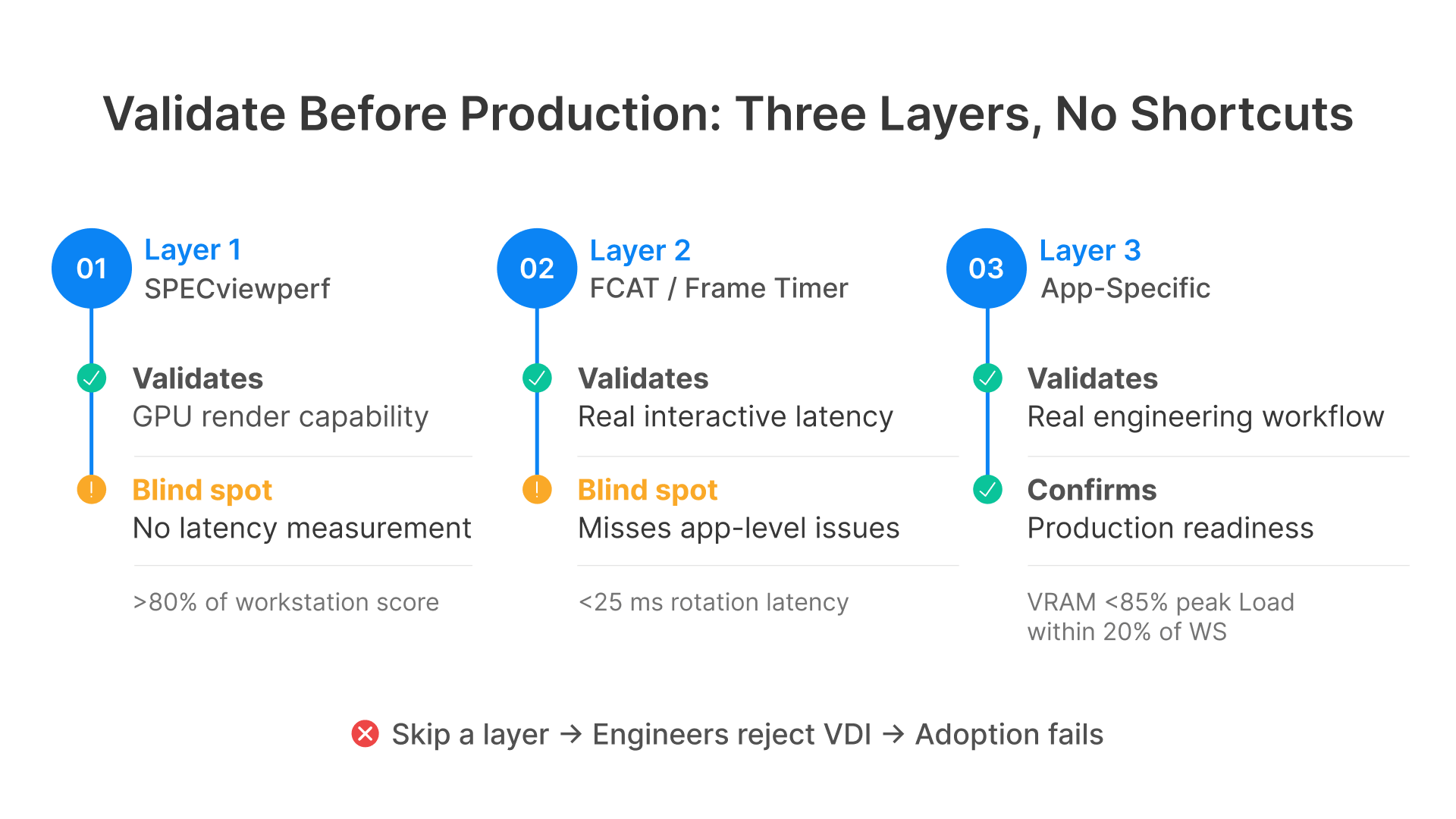
SPECviewperf is the worldwide standard for measuring graphics performance based on professional applications, published by the Standard Performance Evaluation Corporation (SPEC). It measures OpenGL rendering performance using workloads (called viewsets) derived from real CAD applications including Creo, SolidWorks, CATIA, Siemens NX, and ANSYS — without needing to install the applications themselves. As a practical target: an OCI VM.GPU.A10.1 running the SolidWorks (sw-06) workload should score within 80 to 90 percent of a comparable physical workstation with an NVIDIA RTX A4000 GPU. If scores fall short, investigate GPU driver version, vGPU profile configuration, and session encoding offload.FCAT: How Do You Measure Real Interactive Latency?
SPECviewperf measures raw rendering throughput but not end-to-end session latency. FCAT (Frame Capture Analysis Tool), developed by NVIDIA, captures actual frame delivery timing in real-time sessions. For CAD VDI acceptance, measure latency during three tasks: assembly rotation (target below 25ms average), zoom-to-fit on large assembly (below 35ms), and 2D annotation (below 10ms).What Application-Specific Tests Should You Run?
Beyond synthetic benchmarks, run these application-level tests during your engineering workstation VDI GPU pilot:- Large assembly load time: open your three largest production assembly files and measure time to full load. Target: within 20% of physical workstation.
- Assembly rotation consistency: with the largest assembly open, perform continuous rotation for 60 seconds. Frame rate drops below 15 FPS are noticeable. VRAM exhaustion during this test signals you need a bigger shape.
- Multi-application concurrent use: open CAD + PDM/PLM client + PDF reader simultaneously. Many CAD sessions run 4–6 applications — single-app benchmarks underestimate real VRAM needs.
- Print and PDF export: test large spooling operations. Printing in VDI is frequently worse than physical workstations without specific virtual printer configuration.
| Metric | Tool | Target | Why It Matters |
|---|---|---|---|
| OpenGL throughput | SPECviewperf | >80% of workstation | Baseline GPU shape adequacy |
| Frame latency | FCAT | <25ms avg rotation | Primary UX determinant for interactive CAD |
| VRAM utilization | nvidia-smi / Datadog | <85% peak | Headroom before performance degradation |
| Encoding quality | Thinfinity stats | No artifacts on edges | Perceived resolution of engineering geometry |
| Assembly load time | Manual timing | Within 20% of desktop | Daily productivity impact |
| Bandwidth/session | Datadog / OCI metrics | <25 Mbps average | Concurrent session capacity planning |