

Summary
- The honest headline is a compute-hour formula, not a total-cost cut. A Mon–Fri ~10h schedule = ~50 of 168 weekly hours, so the schedulable compute tier bills about 70% fewer compute-hours (denominator: the weekly hours of that tier). Across a full, blended deployment the effect is smaller: roughly 59% lower total compute and about 12% lower 3-year TCO once licensing, storage, and egress stay flat.
- Cloud VDI is metered per hour, but users work ~45 hours a week, so much of a 168-hour week is idle compute. Powering those hosts off stops the compute meter; boot/block storage keeps billing until the instance is terminated or deleted.
- Thinfinity Cloud Manager autoscaling closes the gap with three building blocks: Scale Sets (Initial / Lazy / Max capacity tiers), Deploy/Destroy modes (On Demand, Scheduled, or Both), and three VDI deployment models (session-based, 1-to-1, dedicated).
- Graceful Drain marks hosts as draining and lets active sessions finish before power-off; sessions continue until they end or the configured grace period expires, at which point the user is warned and disconnected.
- Every Scale Set is defined in Terraform (main.tf, providers.tf, schema.json, uischema.json). Each Scale Set change is a versioned Terraform commit, giving change-control evidence auditors can review.
- The same scaling logic runs on OCI, AWS, Azure, and Google Cloud from a single control plane, supporting multi-region, multi-cloud failover, and cloud arbitrage.
What does the Thinfinity Cloud Manager autoscaling engine actually do?
Thinfinity Cloud Manager autoscaling matches your cloud VDI compute to real working hours instead of paying for idle virtual machines around the clock. In practice, Thinfinity Cloud Manager autoscaling powers hosts on before shifts, drains and powers them off after, and can take non-persistent capacity down to zero outside business hours. On the schedulable compute tier (the hosts a schedule can switch off), a Monday–Friday, roughly 10-hour window runs about 50 of the 168 hours in a week, so that tier bills roughly 70% fewer compute-hours (50/168 ≈ 30% of the hours remain) while the user experience stays the same.
Why does cloud VDI waste so much money?
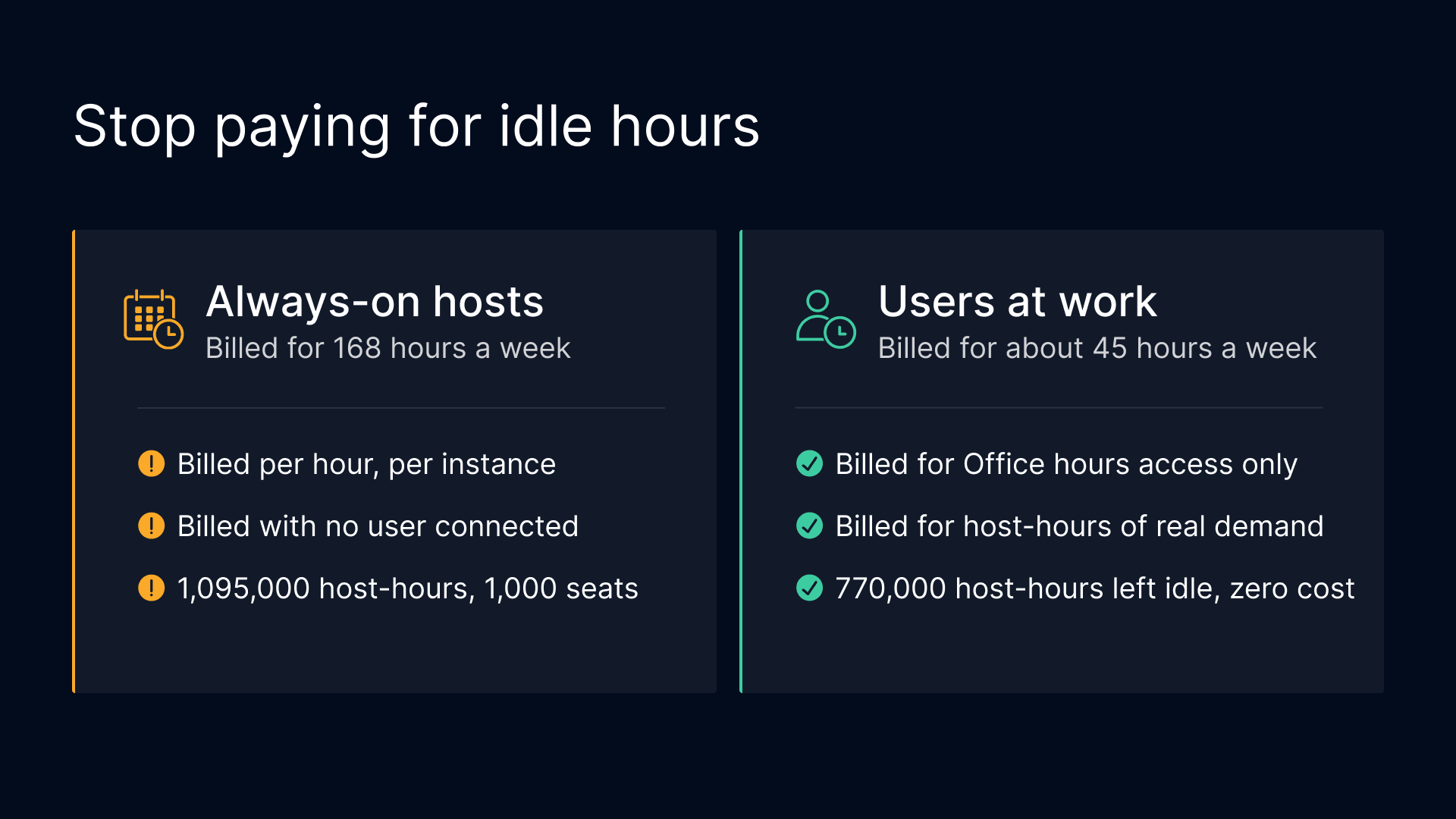
Your VDI infrastructure runs 168 hours a week. Your users work around 45. In an on-premises data center that idle capacity was a sunk cost buried in depreciation. In the cloud it is a metered expense: every hour a VM runs without serving a session is a direct line item on your invoice.
The pricing model exposes waste that used to be invisible. Published list rates are per-hour, per-instance, whether or not a user is connected: for example OCI E4.Flex, AWS m5.xlarge, and Azure D4s_v3 are all billed by the hour (OCI compute pricing, AWS EC2 pricing, Azure VM pricing; verify current rates, as cloud pricing changes frequently).
One important nuance: powering off an instance stops the compute charge, but it does not stop storage. Boot and block volumes (and on Azure the OS and data disks) keep billing until the instance is terminated or deleted. So scheduled power-off is a compute lever, not a storage lever; storage optimization is a separate exercise (covered in the storage article linked above).

You are not charged for usage or data transfer fees for your instance when it is stopped. Charges are incurred for the storage of any Amazon EBS volumes.

Consider a 1,000-seat deployment sized for peak concurrency: approximately 125 hosts at 8 sessions per host. Running those 125 hosts 24/7/365 is 1,095,000 host-hours a year. Actual demand (office hours, Monday–Friday) is roughly 325,000 host-hours. The remaining ~770,000 host-hours are idle. At a representative OCI E4.Flex rate (around $0.12/host-hour, illustrative), that idle compute is on the order of $92,400 per year for a single 1,000-seat deployment.
Idle VDI is one contributor to a broader industry pattern. The Flexera 2026 State of the Cloud Report (March 2026) estimates that respondents self-report wasted cloud spend at about 29% of their IaaS/PaaS spend, up from 27% the prior year, the first increase in five years, which Flexera attributes largely to surging AI workloads. Idle, always-on VDI is one of several contributors to that figure, not its cause.
| Metric | 1,000 Seats | 5,000 Seats |
|---|---|---|
| Peak Hosts Required | 125 | 625 |
| Hours/Year (24/7) | 1,095,000 | 5,475,000 |
| Actual Demand Hours | 325,000 | 1,625,000 |
| Wasted Host-Hours | 770,000 | 3,850,000 |
| Wasted Compute Cost (OCI, illustrative) | $92,400 | $462,000 |
Compute only. Storage, licensing, and egress are not shown here because power-off does not reduce them; they persist until the underlying resources are deleted. Figures are illustrative; validate against your own utilization and current cloud rates.
How do Citrix, Omnissa, and Azure AVD compare?
Citrix, Omnissa Horizon, and Azure Virtual Desktop (AVD) all include autoscaling or power-management capabilities. The most useful comparison is on capability, not price: vendor pricing is negotiated and changes often, so confirm current pricing directly with each vendor. Confirm every capability below against current vendor documentation, as product behavior changes between releases.
Citrix Autoscale is a genuine autoscaling feature supporting both schedule-based and load-based scaling across multi-session and single-session delivery groups, with 30-minute scheduling granularity for multi-session pools and a configurable capacity buffer. Citrix brought Autoscale to on-premises deployments with the Citrix Virtual Apps and Desktops 2305 release (mid-2023); it had previously been a cloud/DaaS feature (see the Citrix Autoscale documentation).
Omnissa Horizon is the former VMware End-User Computing (Horizon) business, an independent company since the 2024 KKR carve-out. Horizon has expanded hypervisor support beyond vSphere, including GA support for Nutanix AHV (Horizon 8 2512, December 2025). Its elasticity is primarily instant-clone pool sizing, maintaining a spare count and provisioning new clones when it drops below threshold, rather than schedule-based pre-warming of a host fleet.
AVD scaling plans are schedule-based and load-based and target Azure host pools only. Multi-cloud, OCI-primary, or hybrid OCI/AWS architectures are outside their scope.
Where Thinfinity Cloud Manager differs in kind: it exposes Scale Sets as first-party Terraform files you can version-control, and it drives the same scaling logic across OCI, AWS, Azure, and Google Cloud from a single control plane. As of October 2026 we are not aware of a first-party Terraform provider for Citrix Autoscale policy or for Horizon pool-scaling policy.
| Capability | Thinfinity Cloud Manager | Citrix Autoscale | Omnissa Horizon | Azure AVD |
|---|---|---|---|---|
| Schedule-based scaling | Yes | Yes (30-min granularity) | Pool sizing | Yes (Azure host pools) |
| Load-based scaling | Yes | Yes | Reactive clone provisioning | Yes |
| Graceful drain of active sessions | Yes | Yes (drain mode) | Partial | Yes |
| First-party Terraform IaC for scaling policy | Yes (four files per Scale Set) | Not first-party | Not first-party | Not first-party |
| Multi-cloud from a single control plane | OCI, AWS, Azure, Google Cloud | Single control plane (Citrix Cloud) | vSphere-centric | Azure only |
| Persistent desktop on/off scheduling | Yes (per-user power schedule) | Static-desktop power management | Limited | Within Azure |
Competitor capabilities reflect each vendor’s published documentation at the time of writing; confirm against current vendor docs.
How does the Thinfinity Cloud Manager autoscaling engine work?
Thinfinity Cloud Manager autoscaling operates on three pillars: Scale Sets (capacity-defined pools), Deploy/Destroy modes (on/off scheduling), and VDI deployment models (session-based, 1-to-1, dedicated). Each addresses a different dimension of cloud VDI compute cost.
Scale Sets: the core capacity unit
A Scale Set is a pool of identical cloud instances running the same OS image and application stack, defined by three capacity parameters:
- Initial Instances: the baseline hosts that run continuously (your always-on floor). For a standard office-hours workload this might be 10–20% of peak capacity.
- Lazy Instances: the on-demand buffer. These hosts exist as configurations but do not consume compute until triggered. When demand approaches Initial capacity, Lazy Instances spin up automatically.
- Max Instances: the hard ceiling. This caps the host count of this Scale Set, so a misconfigured threshold or session leak cannot drive the pool past a known number of hosts. It bounds host count for this Scale Set, not your total cloud spend.
Example: a contact center with 500 agents at peak might set Initial = 15 (120 sessions at 8 per host), Lazy = 50 (overflow to 520 sessions), and Max = 65. Outside business hours only the 15 Initial Instances run; during peak the pool scales up to 65 hosts.
Deploy modes: when and how instances come online
The Deploy section controls when instances are created and powered on. Cloud Manager offers three deploy modes:
- On Demand: instances spin up only when session load crosses scaling thresholds. Pure reactive scaling, best for unpredictable workloads.
- Scheduled: instances are pre-provisioned on a weekly grid. You define which days and what time window (From/To) instances should be active, for example Monday–Friday, 9:00 AM to 7:00 PM. Outside that window, Lazy Instances power down automatically. This is the most cost-effective mode for predictable business-hours workloads.
- Both: combines Scheduled and On Demand, the recommended mode for most enterprise deployments.
The schedule grid is granular: each weekday has its own From/To range, so you can run standard hours Monday–Friday, reduced hours Saturday, and Sunday off. For Scheduled hosts, pre-warming happens before the start time, so hosts are booted, domain-joined, and ready before users arrive. Pre-warming applies to scheduled capacity; On Demand instances still incur a typical boot/provision delay when a threshold triggers them.
Destroy modes and scale-to-zero: controlling when instances power off
The Destroy section controls what happens to instances when they are no longer needed:
- Never: instances are never automatically destroyed; use for persistent desktops or compliance environments where VMs must retain state.
- Scheduled: instances are automatically powered off when the window ends. Cloud Manager initiates the Graceful Drain Procedure, waits for active sessions to complete, then powers off the host so compute charges stop. Note that boot/block storage (and Azure OS/data disks) continue to bill until the instance is terminated or deleted: power-off halts compute, not storage.
“Scale-to-zero” is a configuration, not a one-click switch: it is the combination of Deploy: Scheduled and Destroy: Scheduled applied to non-persistent capacity, which lets the schedulable tier drop to zero running hosts outside working hours. A Monday–Friday 9:00 AM–7:00 PM schedule runs about 50 of 168 weekly hours, so that tier bills roughly 70% fewer compute-hours. That ~70% is a compute-hour reduction on the schedulable tier only, not a cut to your total bill, which also carries the always-on Initial floor plus flat storage, licensing, and egress.
Shutting down an instance using the instance’s OS does not stop billing for that instance. If you shut down an instance this way, be sure to also stop it from the Console or API.
Graceful Drain: controlled scale-down
When scale-down fires (by schedule, threshold, or manual action), Cloud Manager does not forcibly terminate sessions. Instead it runs the Graceful Drain Procedure:
- The target host is marked draining; the connection broker stops assigning new sessions to it.
- Existing sessions continue until they end or the configured grace period expires.
- Cloud Manager monitors the draining host’s active session count in real time.
- When the last session disconnects, the host powers off and its compute charges stop.
- If sessions are still active when the configured grace period expires, Cloud Manager warns the user and then disconnects the session, preventing hosts from running indefinitely on idle sessions.
This is the mechanism that makes scheduled scaling safe for production: a scale-down does not end a session out from under someone; it waits for the session to finish or for the grace period you set.
How do the VDI deployment modes change scaling behavior?
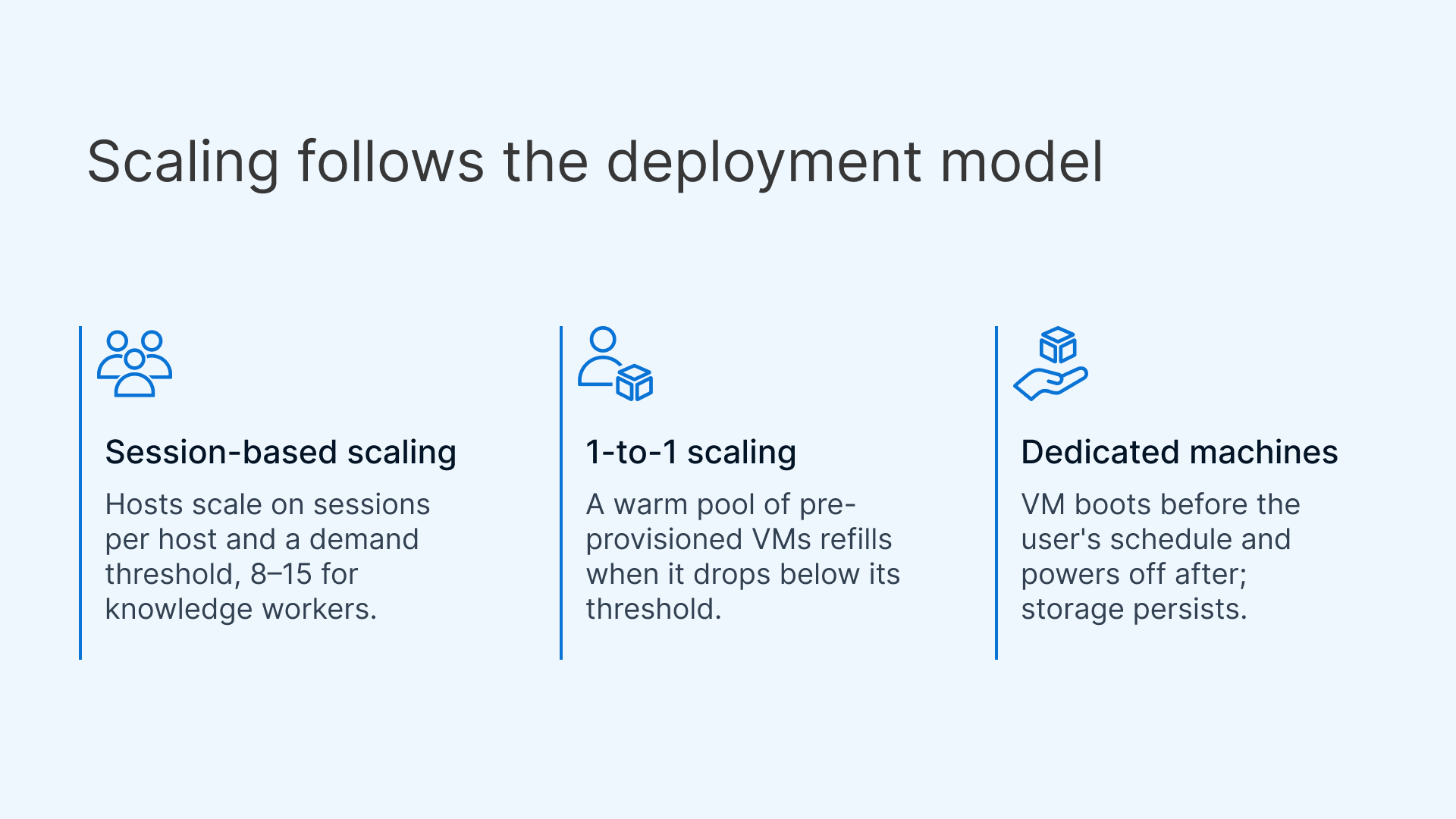
The autoscaling engine adapts to three VDI deployment models, each with a different scaling behavior and cost profile.
Session-based scaling: multiple users per host
Each host serves multiple concurrent sessions. You define sessions per host, and Cloud Manager scales host count based on that density ratio and a demand threshold.
- Sessions per host: typically 8–15 for knowledge workers, 4–6 for power users, 2–3 for GPU-accelerated workloads.
- Scaling threshold: the percentage of current capacity at which new hosts spin up (for example, at 10 sessions/host and a 75% threshold, a 5-host pool triggers scaling at ~38 sessions).
- Pool Mode: users connect to any available host; sessions are non-persistent (or saved to a profile layer such as FSLogix). Highest density, lowest compute cost per user.
- Dynamic Assignment: users are assigned to the least-loaded host at connection time, preventing hotspots.
Session-based scaling is the default for contact centers and shift-work environments. A 500-agent center at 10 sessions/host needs 50 hosts at peak; with scheduled scaling only the Initial Instances run off-hours, cutting off-peak compute-hours on the schedulable tier substantially.
1-to-1 scaling: one user, one VM
Each user gets a dedicated VM for the duration of their session: full isolation with no noisy-neighbor contention. Appropriate for regulated industries (HIPAA, PCI-DSS, GLBA), developer workstations, and GPU workloads. Instead of scaling on sessions-per-host density, Cloud Manager maintains a warm pool of pre-provisioned VMs; when the pool drops below threshold, new VMs are provisioned, and released VMs are reset and returned or destroyed depending on Destroy mode. A naming prefix (for example CC-001, CC-002) keeps operational tracking straightforward in cloud consoles.
Dedicated machines: persistent VMs with on/off control
Dedicated mode assigns a specific VM to a specific user permanently (traditional persistent VDI), with the addition of on/off scheduling:
- Scheduled power-on: the user’s VM boots automatically before their work schedule (for example 7:45 AM for an 8:00 AM start).
- Scheduled power-off: the VM powers off after hours or after disconnect. This stops CPU and memory (compute) billing; the disk and its data persist, and that boot/block storage keeps billing until the VM is deleted.
- Manual override: users can start their dedicated VM outside the schedule from the Thinfinity portal, and it powers off again after the next destroy window or idle timeout.
For a dedicated desktop on standard business hours, scheduled on/off reduces per-VM running hours from 168 to about 50 per week, roughly 70% fewer compute-hours per VM. Storage is unaffected, so the net bill reduction is smaller than the compute-hour figure, especially where persistent disks are large.
What gets provisioned, and how is it defined as code?
When Cloud Manager provisions a new instance, the Parameters section defines the cloud infrastructure specification for every instance in the Scale Set; for an OCI deployment: Compartment, Availability Domain, Instance Type (for example the AMD Standard E4 Flex shape, with OCPUs and memory specified independently), OS Image (Windows Server 2022 for multi-session RDS hosts, or a custom golden image), Disk Size, Network Configuration, and Domain Join. These parameters are identical for every instance, so a Lazy Instance that spins up at 8:45 AM gets exactly the same shape, image, network config, and domain join. Consistency is enforced by design, not operator discipline.
Terraform templates: infrastructure as code
Cloud Manager uses Terraform as its IaC engine. Every Scale Set’s definition is stored as four files you can inspect, modify, version-control, and audit: main.tf (the OCI resource definitions, including the ocicoreinstance resource), providers.tf (provider and version constraints), schema.json (parameter validation), and uischema.json (UI rendering). A simplified instance resource block:
The sizing here (2 OCPUs = 4 vCPUs) matches the ~4-core, ~$0.12/host-hour shape used in the cost model below; adjust OCPUs, memory, and disk to your workload. The OCI Terraform provider is version-pinned (for example ~> 8.0) for API compatibility; verify the current provider version before pinning. For multi-cloud deployments you would have separate providers.tf files for AWS (hashicorp/aws), Azure (hashicorp/azurerm), or Google Cloud (hashicorp/google), each with its own credentials.
The practical value is change control: because each Scale Set is a set of Terraform files, every creation, parameter change, and schedule adjustment can be kept under version control as a Terraform commit, giving auditors change-control evidence they can review.
How does the same logic run across OCI, AWS, Azure, and Google Cloud?
The Thinfinity Cloud Manager autoscaling engine is cloud-agnostic. The scaling logic (Scale Sets, deploy/destroy schedules, drain procedures, VDI deployment modes) is the same across OCI, AWS, Azure, and Google Cloud. You define the scaling policy once, and Cloud Manager executes it against whichever provider hosts that Scale Set. This matters for three scenarios:
- Multi-region, single cloud: a global enterprise on OCI across US Phoenix, EU Frankfurt, and APAC Tokyo defines three Scale Sets with region-appropriate schedules; Cloud Manager handles the timezone offsets.
- Multi-cloud failover: primary VDI on OCI, with overflow routed to AWS as a secondary Scale Set when OCI hits Max Instances. The connection broker directs users to the next available host regardless of cloud.
- Cloud arbitrage: different Scale Sets on different clouds optimized for price: OCI E4.Flex for baseline, with Spot/preemptible capacity for overflow or non-critical dev/test. Spot/preemptible capacity is interruptible: the provider can reclaim it on short notice, so use it only where session loss is tolerable (for example stateless dev/test), not for the production sessions that Graceful Drain is meant to protect.
Operating VDI across multiple clouds needs a cloud-agnostic orchestration layer, which is what Cloud Manager provides from a single control plane. For how you then operate and audit those VMs across clouds with role-based access control, see operate and audit these VMs across clouds (RBAC).
What is the real ROI of scheduled on/off versus always-on?
Model a realistic 1,000-seat deployment on OCI for a standard office-hours operation (9 AM–7 PM, Monday–Friday), with all assumptions visible: peak concurrency 1,000; 8 sessions/host; 125 hosts at peak; 20 Initial Instances (16% of peak) always on; a representative OCI E4.Flex rate of about $0.12/host-hour (illustrative); a ~50-hour weekly scheduled window. Storage, licensing, and egress are held flat because power-off does not reduce them.
| Cost Category | Always-On (Legacy) | Scheduled On/Off (Thinfinity) |
|---|---|---|
| Compute (OCI E4.Flex, illustrative) | $131,400/yr | $53,784/yr |
| Windows Server Licensing | $80,000/yr | $80,000/yr |
| Storage (50 TB persistent) | $24,000/yr | $24,000/yr |
| Network Egress | $12,000/yr | $12,000/yr |
| Thinfinity Licensing | — | $48,000/yr |
| Annual Total | $247,400 | $217,784 |
| 3-Year TCO | $742,200 | $653,352 |
| 3-Year Savings | — | $88,848 (12%) |
All figures illustrative; validate against your own utilization and current cloud rates. Two denominators matter here. The compute line falls about 59% ($131,400 → $53,784): that is the total compute reduction for the whole deployment, including the always-on Initial floor, which is why it is below the ~70% schedulable-tier compute-hour figure. The 12% is the 3-year TCO reduction; the denominator is the full bill including flat licensing, storage, and egress. The honest takeaway: compute-hours on the schedulable tier drop ~70%, total compute drops ~59%, and total TCO drops ~12% in this conservative office-hours model. Shift-work or heavy off-hours patterns move the total-compute and TCO numbers higher.
| Deployment Pattern | Annual Compute Reduction (illustrative) |
|---|---|
| Office Hours Only (~50 hrs/wk) | ~59% total compute |
| 2-Shift Operation (~80 hrs/wk) | ~52% total compute |
| Contact Center (variable demand) | ~40–65% total compute |
| Dedicated Desktops (on/off) | ~70% per-VM compute-hours (storage unaffected) |
These ranges are illustrative and attach to this table only; they are compute reductions, not total-bill reductions, and exclude storage, licensing, and egress. Model your own utilization and current cloud rates.
When does scheduled autoscaling not pay off?
Scheduled autoscaling is a compute-hour lever, so it delivers little in situations where there are few idle compute-hours to remove, or where the bill is dominated by something power-off does not touch:
- 24/7 or follow-the-sun operations: if hosts are genuinely in use around the clock, there are no off-hours to switch off.
- Small deployments where Initial ≈ Max: if nearly every host is part of the always-on floor, the schedulable tier is tiny and the savings are marginal.
- Reserved or committed-use pricing already purchased: if you have already committed to and paid for capacity, powering it off does not refund it.
- Persistent desktops where storage dominates the bill: power-off stops compute but not storage, so if large persistent disks drive most of the cost, scheduling compute changes little.
- Spot-unfriendly, session-critical workloads: if sessions cannot tolerate interruption, interruptible Spot/preemptible arbitrage is off the table, narrowing the savings to schedule-based power-off alone.
Deploy vs Destroy: how do the modes compare?
| Dimension | Deploy: Scheduled + Destroy: Scheduled | Deploy: On Demand + Destroy: Never |
|---|---|---|
| Best for | Predictable business-hours and shift workloads | Unpredictable, always-available capacity |
| Off-hours compute | Schedulable tier drops to zero running hosts | Runs until manually removed |
| Cost profile | Lowest compute: up to ~70% fewer compute-hours on schedulable hosts (storage unaffected) | Highest: pays for idle compute capacity |
| User impact at scale-down | Graceful Drain protects active sessions until they end or the grace period expires | No scheduled scale-down |
| Typical use | Contact centers, dedicated desktops on/off | Incident response, persistent compliance VMs |
How do you configure autoscaling step by step?
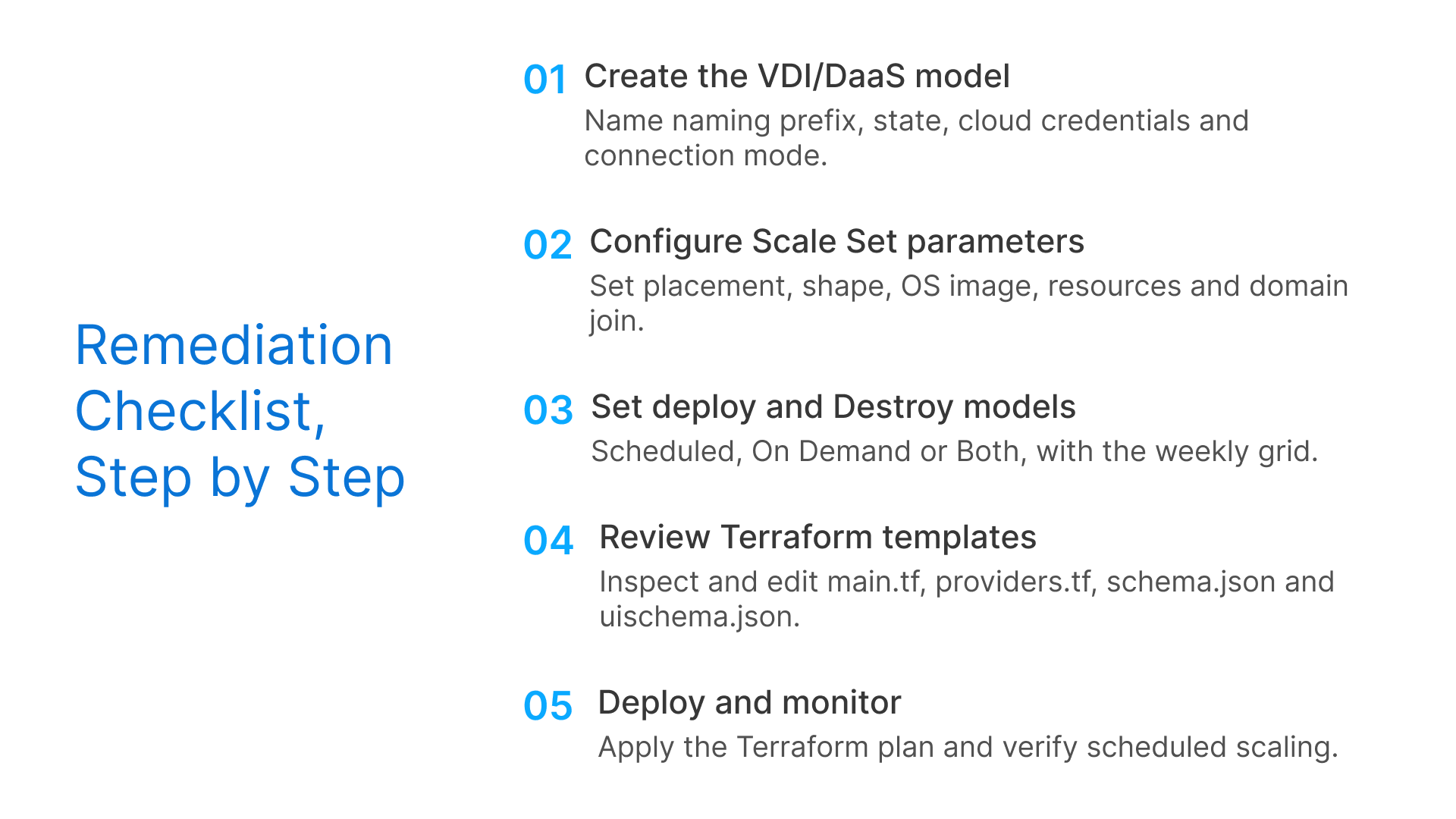
- Create the VDI/DaaS model: in Cloud Manager, define the model name, naming prefix (for example CC- with 3 digits from index 001), state, cloud credentials, and connection mode. Enable Pool Mode and Dynamic Assignment for session-based deployments; disable both for dedicated.
- Configure Scale Set parameters: set compartment, availability domain, instance shape, OS image, CPU, memory, disk, and domain join options.
- Set Deploy and Destroy modes: choose Scheduled, On Demand, or Both; for Scheduled, define the weekly grid; choose Destroy: Scheduled for compute savings or Never for persistent environments.
- Review Terraform templates: inspect main.tf, providers.tf, schema.json, and uischema.json, and edit directly for custom provisioners, tags, or networking.
- Deploy and monitor: Cloud Manager runs terraform plan then terraform apply to provision Initial Instances; validate that scheduled scaling fires on the first business day after deployment.