
Summary
- Windows passwordless authentication replaces the password with a cryptographic credential (Windows Hello for Business, FIDO2 keys, passkeys, or certificate/smart-card logon) that is bound to the device or token and resistant to phishing.
- Admins turn a method on in the Microsoft Entra Authentication Methods policy; users then register a biometric, PIN, key, or passkey.
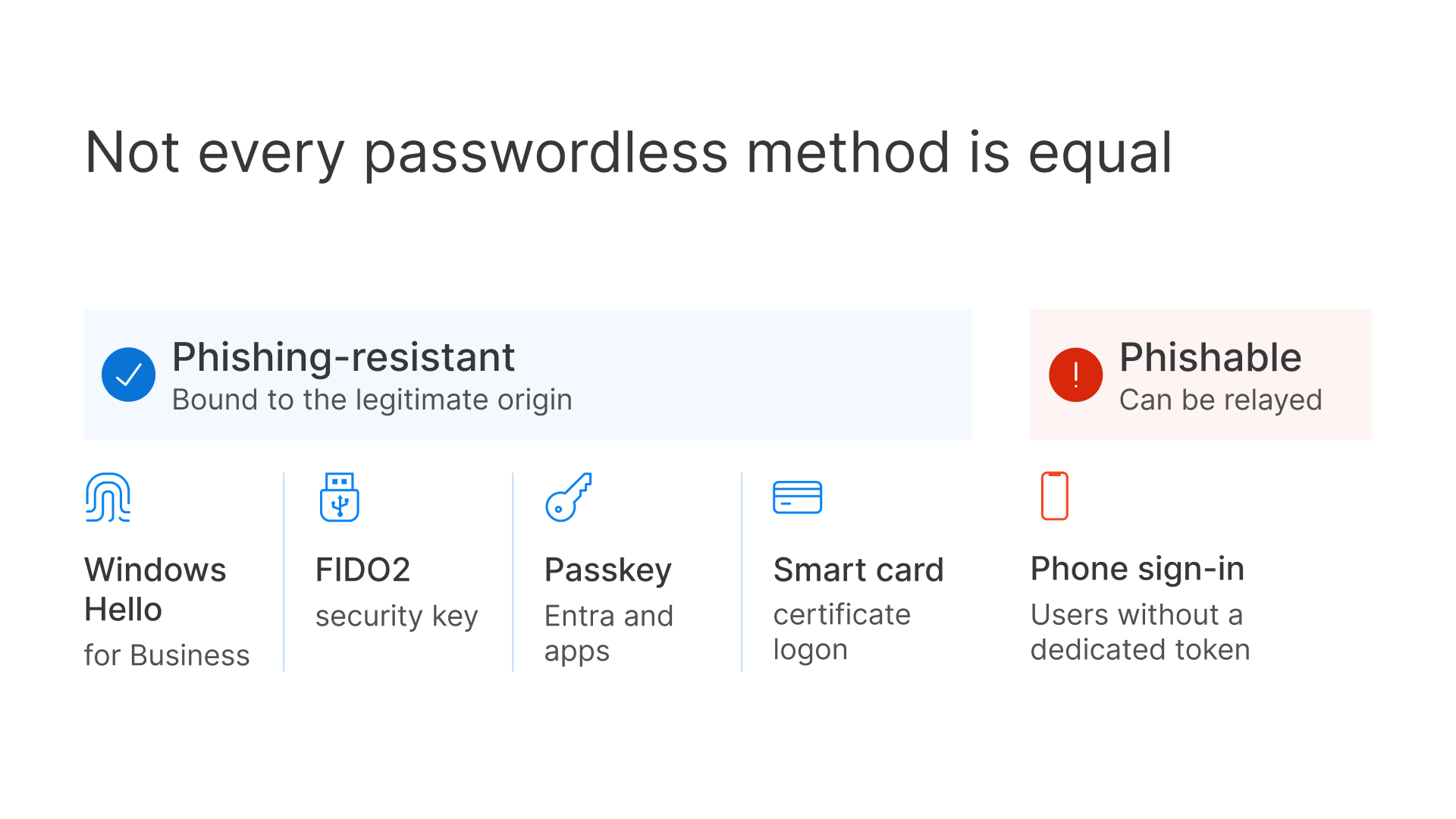
- “Phishing-resistant MFA” means the credential is cryptographically bound to the legitimate origin: FIDO2, passkeys, Windows Hello for Business, and PKI smart cards qualify; SMS, OTP, and push do not (CISA).
- The gap native tools only partly close: Microsoft Entra single sign-on can carry Windows Hello, FIDO2 keys, and passkeys into a remote session, but only on Microsoft Entra joined or hybrid joined session hosts, and the remote lock screen still won’t accept them. Hosts joined only to Active Directory, or desktops behind a non-Microsoft broker, still hit a password prompt.
- Where Entra SSO doesn’t apply, certificate-based logon is the method that carries through: redirect a smart card, or issue a short-lived per-session logon certificate and authenticate via Kerberos PKINIT, the model Thinfinity FAS automates for federated users.
Windows passwordless authentication lets a user sign in to Windows without typing a password, using a phishing-resistant credential such as Windows Hello for Business, a FIDO2 security key, a passkey, or a smart-card certificate. The private key stays on protected hardware and never travels, so there is no password to phish, spray, or replay.
What is Windows passwordless authentication?
Windows passwordless authentication is any sign-in method that proves a user’s identity to Windows without a reusable password. Instead of a shared secret the user types, the system relies on a cryptographic key pair: a private key held on the device or a hardware token, and a public key the service verifies. Because the private key never leaves the authenticator and never crosses the network, the classic attacks against passwords (phishing, password spray, credential stuffing, replay) lose their target. Most modern Windows passwordless methods are built to be phishing-resistant MFA. That term has a specific meaning: the credential is cryptographically bound to the legitimate origin, so it cannot be relayed to a lookalike site or captured and reused elsewhere. The United States Cybersecurity and Infrastructure Security Agency (CISA) groups FIDO2/WebAuthn authenticators and PKI-based smart cards together as phishing-resistant, and distinguishes them from SMS one-time codes, time-based OTPs, and simple push approvals, which can be phished or fatigued. The practical takeaway for Windows: not every “MFA” is equal, and passwordless done right raises the floor from “another thing to type” to “a credential an attacker cannot steal remotely.”

Passkeys help prevent remote phishing by replacing phishable methods like passwords, SMS, and email codes.

Windows passwordless methods compared
Windows supports several passwordless methods, and they are complementary rather than mutually exclusive. The right mix depends on whether devices are managed, shared, or unmanaged and, as the comparison table shows, on whether users need to sign in to a local device or a remote session.
Windows Hello for Business
Windows Hello for Business is a device-bound passwordless credential unlocked by a biometric (face or fingerprint) or a PIN. It is a phishing-resistant, key-based credential: the key pair is generated and stored on the device, protected by the TPM where present, and the biometric or PIN only unlocks the local key; it is never transmitted. Microsoft positions Windows Hello for Business as its recommended passwordless option for managed, Microsoft Entra-joined devices. It is ideal when each user has an assigned, enrolled Windows PC.
FIDO2 security keys
FIDO2 security keys are portable external authenticators (typically USB, NFC, or Bluetooth tokens) that hold the private key on the device itself. Authentication uses public-key cryptography and is origin-bound, which makes these keys phishing-resistant by design. Because the credential is portable, FIDO2 keys suit shared workstations, frontline scenarios, and users who move between machines, where a device-bound Hello credential on a single PC would not fit.
Passkeys & Microsoft Entra passkeys on Windows
Passkeys are FIDO2 credentials, and they come in two flavors: device-bound passkeys that never leave the authenticator, and synced passkeys that roam across a user’s devices through a provider. Synced passkeys do not support attestation, so organizations that must prove exactly which authenticator was used should prefer device-bound passkeys. Microsoft Entra passkeys on Windows reached general availability in 2026. They are device-bound, work on unmanaged and shared PCs, and are designed to complement Windows Hello for Business rather than replace it, useful precisely where a device-bound Hello credential cannot be provisioned. One distinction matters for this article: Entra passkeys on Windows sign users in to Microsoft Entra and the apps behind it from a Windows device; they do not sign the user in to Windows itself. Windows sign-in remains Windows Hello for Business, a FIDO2 security key, or a smart card.
Certificate-based & smart card logon (CAC/PIV, PKI, virtual smart cards)
Certificate-based logon uses an X.509 certificate whose private key lives on tamper-resistant hardware: a Common Access Card (CAC), a Personal Identity Verification (PIV) card, an enterprise PKI smart card, or a TPM-backed virtual smart card. Windows authenticates the certificate through Kerberos PKINIT against the domain controller. CISA groups PKI smart cards with FIDO/WebAuthn as phishing-resistant MFA, and NIST’s PIV standard (FIPS 201) underpins the US government’s smart-card credentials. This is the method with the deepest roots in regulated and government environments and, as the next section shows, the one that carries passwordless logon into a remote session where Entra single sign-on can’t.
Microsoft Authenticator / Entra passwordless (phone sign-in)
Microsoft Authenticator supports passwordless phone sign-in, a strong passwordless MFA method in which the user approves a sign-in from a registered phone. Classic phone sign-in is passwordless but is not classified as phishing-resistant, because an approval can in principle be phished or relayed. Passkeys in Microsoft Authenticator, by contrast, are FIDO2 credentials and are phishing-resistant. The distinction matters when a compliance regime specifically requires phishing-resistant MFA rather than passwordless in general.
| Method | Credential type | Phishing-resistant? | Best for | Works in a remote/VDI session? |
|---|---|---|---|---|
| Windows Hello for Business | Device-bound key pair, TPM-protected (biometric/PIN) | Yes | Managed, Entra-joined PCs with one assigned user | Via Microsoft Entra SSO on Entra joined / hybrid joined hosts; not on AD-only hosts or at the remote lock screen |
| FIDO2 security key | Portable external authenticator | Yes | Shared or roaming workstations; frontline staff | Via Microsoft Entra SSO on Entra joined / hybrid joined hosts; not on AD-only hosts or at the remote lock screen |
| Passkey (device-bound / synced) | FIDO2 credential | Yes | Entra and app sign-in from unmanaged/shared PCs (not Windows sign-in); complements Windows Hello | Same as FIDO2: via Microsoft Entra SSO on supported hosts only |
| Certificate / smart card (CAC/PIV, PKI, virtual) | X.509 cert, key on hardware; Kerberos PKINIT | Yes | Regulated/government; carries into remote sessions | Yes, via smart-card redirection or a per-session logon certificate |
| Microsoft Authenticator phone sign-in | Push-based passwordless (passkey option is FIDO2) | Phone sign-in: no; passkey in Authenticator: yes | Users without a dedicated token; BYOD MFA | Via Microsoft Entra SSO on supported hosts (not phishing-resistant); not on AD-only hosts |
How do you enable passwordless sign-in on Windows?
Enabling Windows passwordless authentication is a two-step pattern. First, an administrator turns the chosen method on in the Microsoft Entra Authentication Methods policy, scoping it to the right users or groups; this is where Windows Hello for Business, FIDO2 security keys, passkeys, and Authenticator passwordless are each enabled or disabled. Second, the user registers the credential: enrolling a biometric or PIN for Windows Hello, registering a FIDO2 security key, or being issued a smart card by the PKI team. Once registered, the user selects the passwordless method at the Windows sign-in screen instead of typing a password. Passkeys follow the same policy but sign users in to Entra and apps rather than to Windows. Certificate and smart-card logon additionally depends on the broader Active Directory PKI being in place, which the remote-session section covers below.
The gap: passwordless login into remote desktop and VDI sessions
Here is the sub-problem most explainers skip, and the one that matters most for virtual desktop infrastructure (VDI) and remote work. The passwordless methods above authenticate you to your local Windows device and to Microsoft Entra. Carrying that passwordless credential through to the OS logon of a remote Windows session is a separate problem, and native tooling solves it only under specific conditions.
Where Windows Hello and FIDO2 reach a remote session, and where they don’t
When you connect to a remote desktop, the session has its own Windows logon. Microsoft closes part of that gap with Microsoft Entra single sign-on: in Azure Virtual Desktop, and in RDP with Microsoft Entra authentication, the user signs in to the session with an Entra ID token, which supports passwordless methods such as passkeys and FIDO2 keys. The conditions are strict. Session hosts must be Microsoft Entra joined or Microsoft Entra hybrid joined and run a supported Windows version; hosts joined only to Active Directory Domain Services aren’t supported. And the remote session’s lock screen still doesn’t accept passwordless methods, which is why Microsoft’s default is to disconnect the session when it locks. Outside those conditions (AD-only session hosts, desktops delivered by a non-Microsoft broker, or an identity provider that isn’t federated with Microsoft Entra ID) you can sign in to your laptop with your face, reach the remote desktop, and still hit a password prompt. That is a design boundary, not a misconfiguration.
When you enable single sign-on, users authenticate to Windows using a Microsoft Entra ID token. This token enables the use of passwordless authentication and third-party identity providers that federate with Microsoft Entra ID when connecting to a session host, making the sign-in experience seamless.
Smart card redirection and Kerberos PKINIT
Where Entra single sign-on doesn’t apply, the native way to get passwordless logon into a remote Windows session is certificate-based. Two approaches work. The first is smart card redirection: the client forwards a physical or virtual smart card into the session, and Windows uses the card’s certificate to authenticate via Kerberos PKINIT against the domain controller. The second is to issue a short-lived, per-session logon certificate that stands in for a smart card, again completing logon through PKINIT. Both put an X.509 certificate where the session’s sign-in happens, which is exactly what the remote lock screen will accept.
Ephemeral per-session certificates with Thinfinity FAS
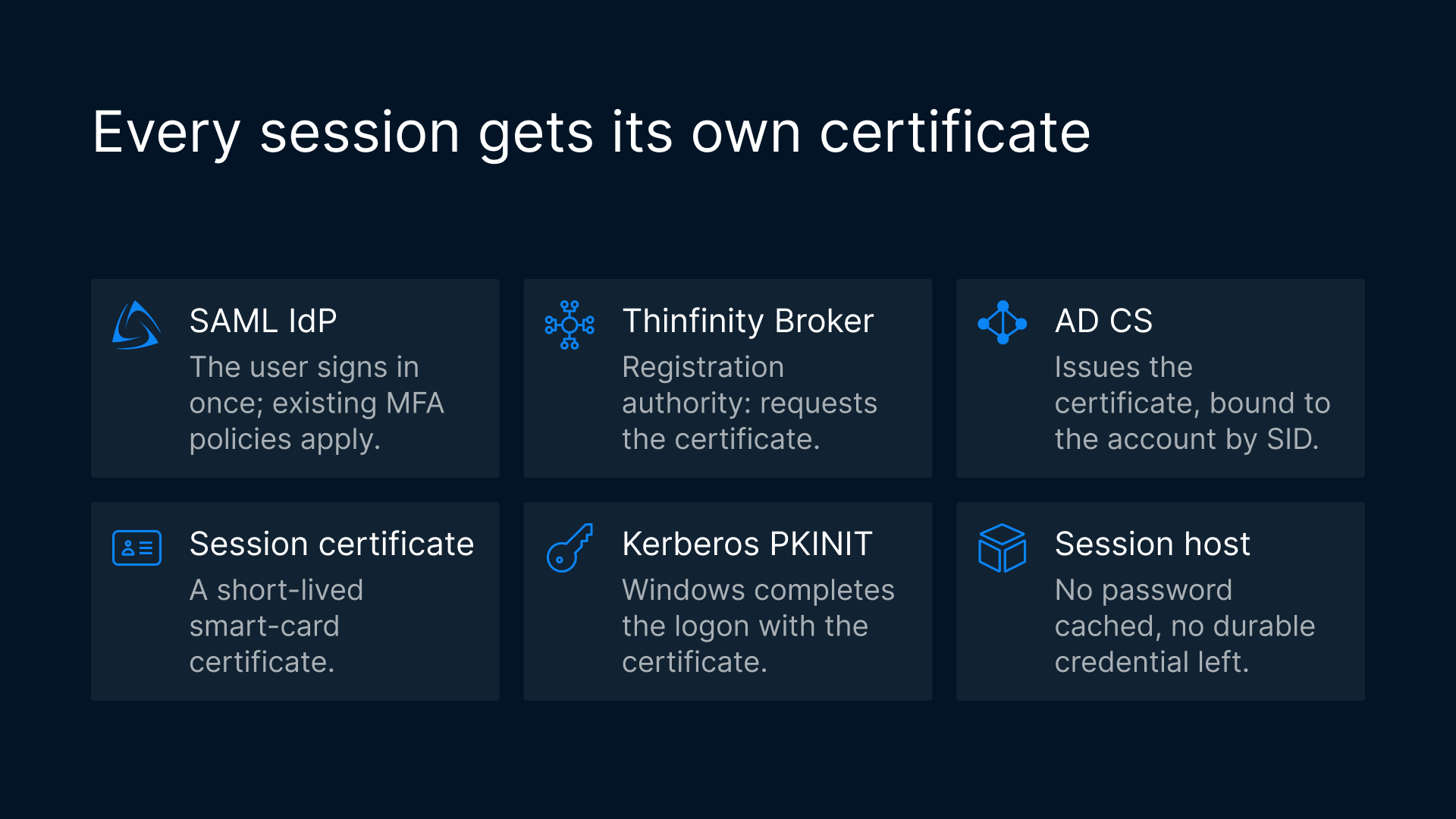
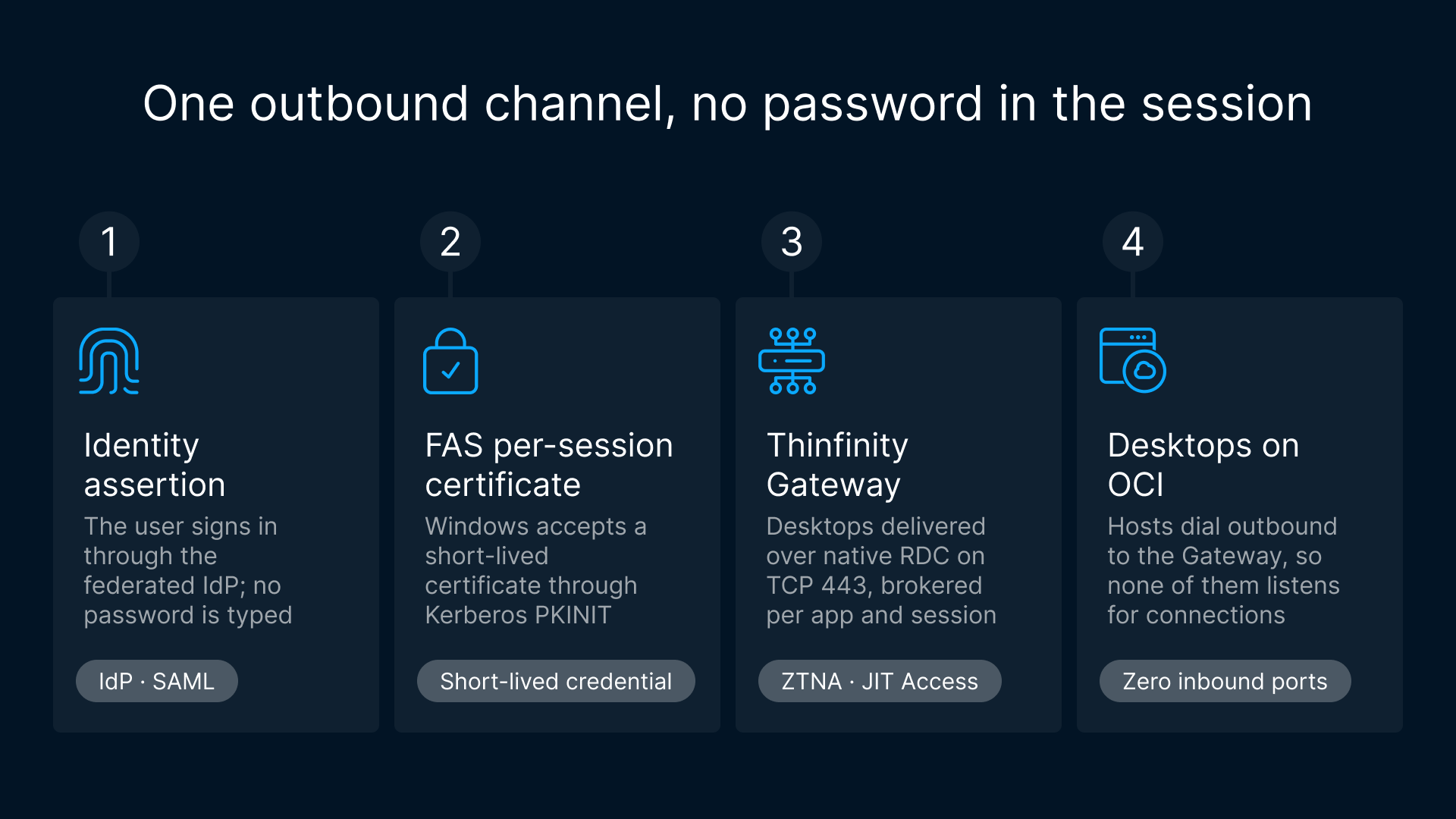
Thinfinity’s Federated Authentication Service (FAS) automates the per-session certificate model for federated users inside Thinfinity Workspace remote sessions. The user authenticates once at a SAML identity provider (IdP), where existing MFA and conditional-access policies apply, and never types a Windows password or an AD account name in the session. On a validated assertion, the Thinfinity Broker acts as a registration authority (RA) and requests a certificate on the user’s behalf from the Enterprise Certification Authority (an “enroll-on-behalf-of” model over AD CS). AD CS issues an ephemeral, per-session smart-card certificate, bound to the correct account through the certificate’s SID extension, and Kerberos PKINIT completes the logon. When the session ends, the certificate’s usefulness ends with it: no password is cached and no durable credential is left on the host. If the model sounds familiar, it is the same enroll-on-behalf-of pattern behind Citrix Federated Authentication Service and Omnissa Horizon True SSO; Thinfinity FAS applies it to Thinfinity Workspace sessions. The prerequisites are concrete Windows PKI building blocks: an Enterprise CA; a V4 certificate template with the SID extension; an RA account; a KDC certificate on the domain controller; and the ThinfinityFasAgent on the session hosts. Notably, no TPM is required: the certificate is a short-lived software credential issued and consumed per session. One practical constraint: smart-card and USB redirection need the native client or Browser + Agent; a pure browser tab cannot redirect a card. For organizations already running smart cards, our guide to smart card authentication for VDI with CAC/PIV covers the redirection path in detail.
Passwordless VDI with Thinfinity Workspace on OCI
Passwordless logon is strongest as one control inside a Zero Trust design. On Oracle Cloud Infrastructure (OCI), Cybele’s lead cloud partner for this architecture, though Thinfinity Workspace also runs on other clouds and on-premises, desktops are delivered over the native RDC protocol through the Gateway on TCP 443. Hosts dial outbound to the Gateway, so there are zero inbound ports open to the desktops themselves. Layer FAS on top and the standing Windows password leaves the session entirely, while AD-based application access keeps working. Pair FAS with Universal ZTNA, so reachability is brokered per application and per session rather than granted at the network, and with JIT Access, so elevated access is granted just in time and expires on its own. The result: a session reached through an identity assertion, over a single outbound-initiated channel, with a credential that lives only as long as the work does. For the reference design (native desktops, outbound connectivity, identity-first controls on Oracle’s cloud), see our native OCI VDI solution. On licensing: Windows VDA still requires Microsoft RDS CALs, while Linux session hosts require none; FAS changes how users authenticate, not what Microsoft requires you to license.
Limits and prerequisites
Windows passwordless authentication is a precise set of capabilities, not a universal eraser of credentials. A few edges are worth stating:
- FAS targets Windows session hosts fronted by a federated, SAML-based IdP. A workload with no federated identity in front of it is not a fit for FAS.
- Certificate-based remote logon requires Windows PKI plumbing: AD CS and an Enterprise CA, the right certificate template, an RA account, and a KDC certificate. These are prerequisites, not conveniences.
- Architecture enables compliance; it does not determine it. Removing the session password and closing inbound ports strengthens posture, but scope, controls, and evidence are yours to define; consult your security, compliance, and legal counsel.
- Passwordless reduces but does not eliminate identity risk. Active Directory and the IdP remain in the trust chain; you are shortening and scoping the credential, not deleting identity. This is not “no credentials anywhere.”